
 Order Management

If a wrong expiry date was entered at receiving, you can now correct it directly in the stock list in Order Management.Changing the expiry date of stock
TL;DR (In short)
- In the detailed stock view you select one or more rows and enter a new expiry date.
- Order Management records the change as an inventory, together with the user who made it.
- The lot and the serial number cannot be changed this way.
Where to change the date
Open Warehouse, then Stock, and the Detailed tab, where expiry dates are shown for each row. Select the rows with the wrong date. They can be on different locations. In the bar at the bottom click Expiration date, enter the correct date and confirm.
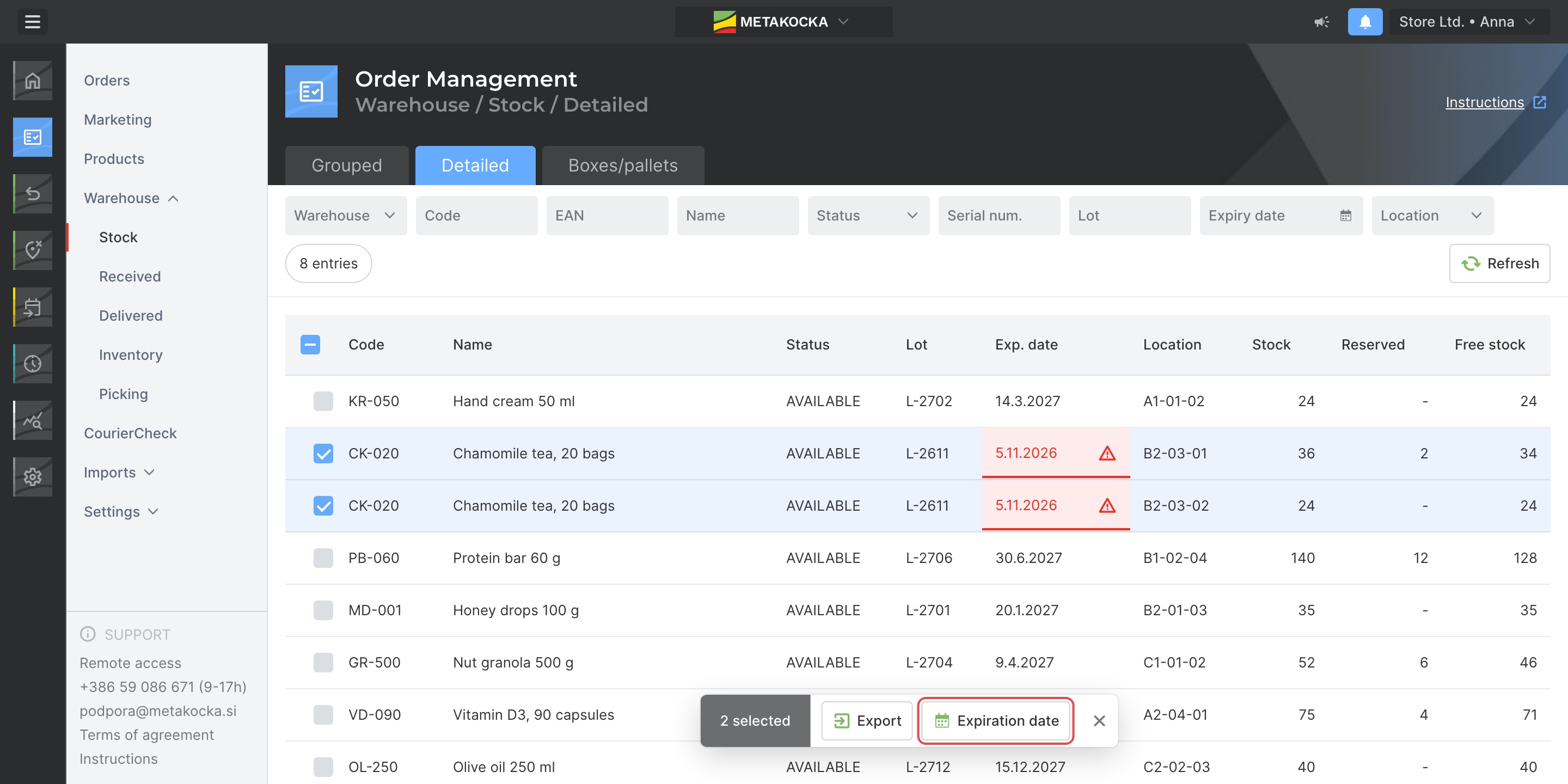
The tea was received with the year 2026 instead of 2027, so it shows as expired. The products are sample data.
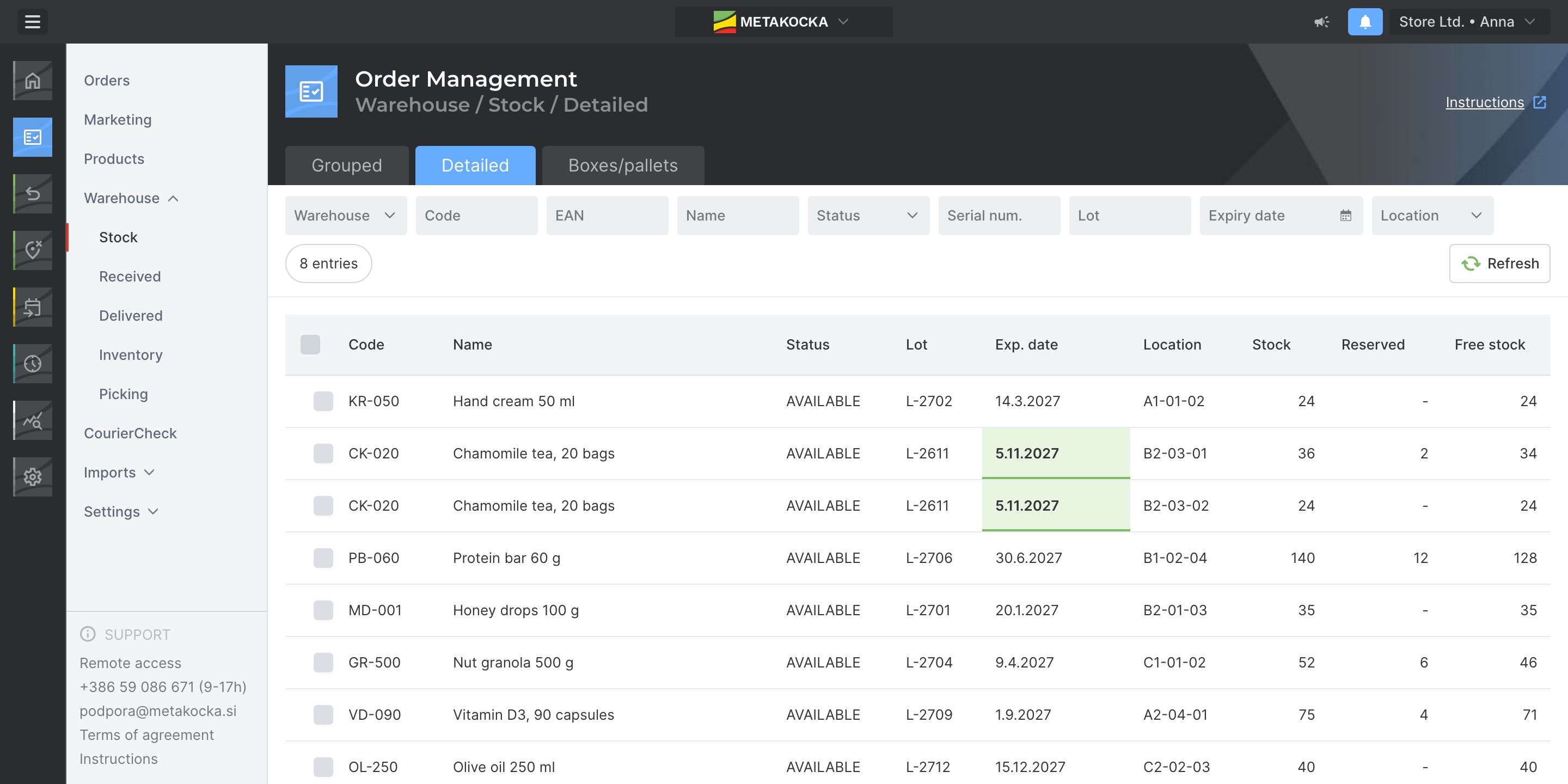
After the change both rows have the correct date.
The change is recorded as an inventory
The quantity in stock stays the same. Order Management creates an inventory in the background that removes the quantity with the old date and adds the same quantity with the new date. The inventory also records which user made the change and when. For food and other products with an expiry date, this means you can always check who changed a date.
If the date is close, the stock is also marked by the warning before the expiry date, which colours it yellow a set number of days in advance.
Lot and serial number
Only the expiry date can be changed this way. The lot and the serial number are fixed on the stock. If one of them is wrong, correct it with an inventory in Warehouse, Inventory.
Instructions and further information:
MetaKocka support · Order Management · Warning before the expiry date
Stock and orders in the same system
In Order Management stock, orders and delivery sit in one place, so the stock situation is visible on the order itself.
| Try it out |
To your success,
The MetaKocka Team
Would you like to hear about new features and improvements?