
 Order Management
On to the next order without going back to the list
An open order now has arrows on its left and right edge. They move you to the previous or next order without closing it.
TL;DR (In short)
- Inside an open order there are now arrows on the left and right edge for the previous and next order.
- You no longer have to close the order to open the next one, so the list underneath does not move.
- Reviewing ten orders in a row, that saves about twenty clicks.
- It is available on every installation, nothing needs switching on.
Close, find, open. Three times for every order
Going through orders one after another is one of those tasks nobody complains about, because each step takes a second on its own. You open the order, check what you need, close it, find the next row in the list and open that. In between, the list often jumps back to the top, so you have to find your place again.
With three orders this is not worth mentioning. In the morning run through all the new orders, though, the seconds add up, and the breaks in concentration add up even more. So we added the shortest possible path: the next order is one click away, right where the mouse already is.
How it works
When you open an order, it opens in a view over the list. On the left and right edge of that view, vertically centred, there are now arrows for the previous and next order. The order does not close while you do this, so the list underneath stays put, and when you reach the last one you wanted to see, you close it once and you are back where you started.
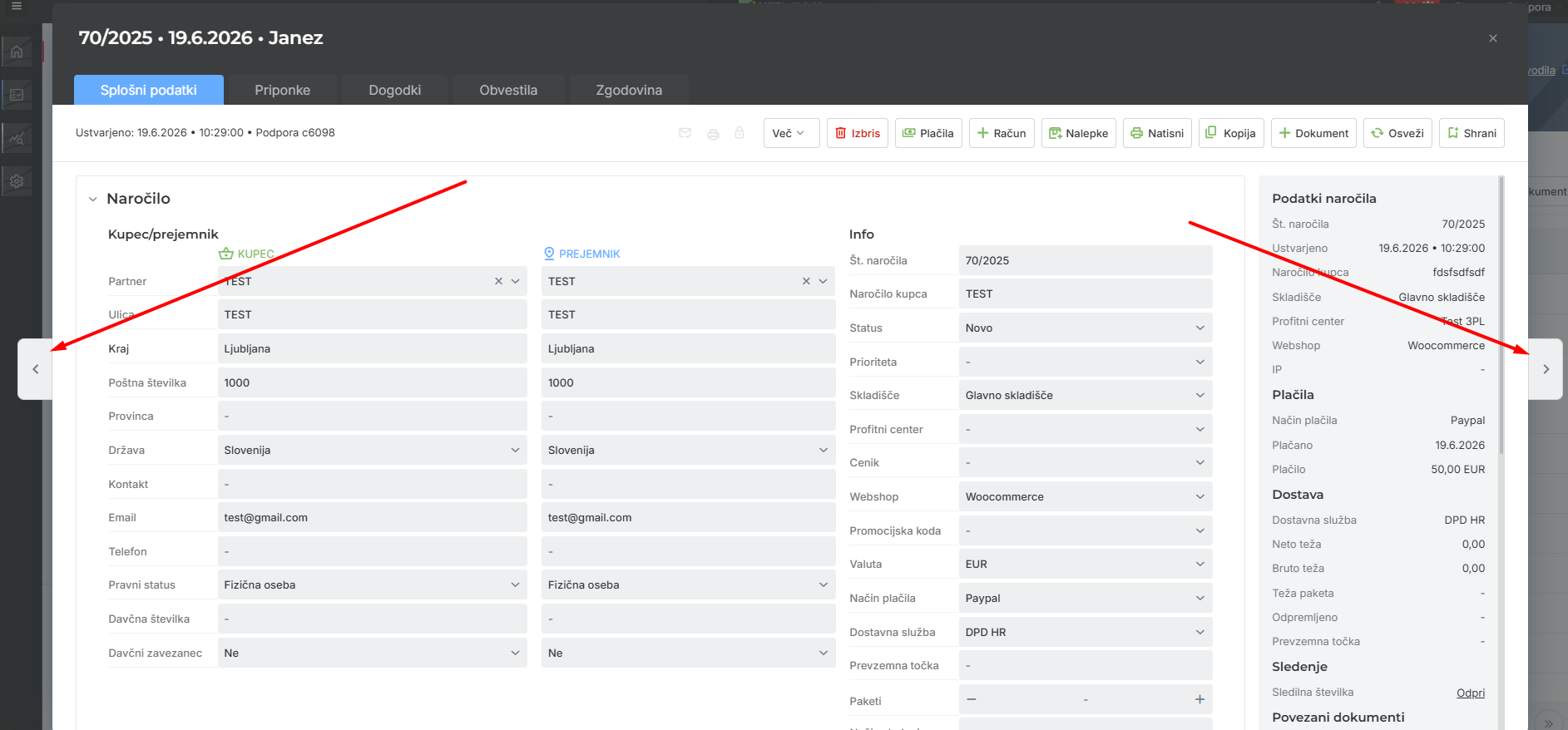
The red markers on the screenshot point at the buttons for the previous and next order.
Where this shows the most
The change is small, but it is noticeable in tasks where you go through orders one by one:
- The morning run through new orders. You open the first one and arrow through all of them, instead of returning to the list after each.
- Checking before dispatch. When you go through the orders that are ready for packing and check the address, the carrier or the customer note on each one.
- Answering a customer question. When a customer has several orders and you need to compare two or three to find the right one.
- Seasonal peaks. In November, when there are half as many orders again, every click saved is multiplied by the number of orders that day.
Instructions and further information:
MetaKocka support · Order Management
Still handling orders across several windows?
Try Order Management and keep orders, delivery and customer notifications in the same system.
| Try it out |
Wishing you business success,
MetaKocka Team
Would you like to be informed about news and optimizations?