
 Order Management
An order list that is set up for your work
In Order Management, every tab can be arranged the way you need it: columns, filters and the actions in the menu. The settings belong to the user, so everyone on the team sets them up for their own job.
TL;DR (In short)
- The button … to the right of the tabs opens the window Tab editing.
- For each tab you set three things: the columns, filters and actions that are shown, including their order.
- A filter can be given a default value, so the tab already opens narrowed down to what you follow.
- Settings are saved for the individual user, and the button Reset brings back the default layout.
One list, four people, four different needs
The order list is the most visited screen in Order Management, and at the same time everyone on the team uses it for something else. Whoever prepares dispatch looks at the delivery service and the tracking number. Whoever issues invoices looks at the amount and the payment method. Whoever handles complaints searches by the customer’s order and by related documents.
The default layout is the same for everyone, so every day there is some scrolling right to the column you need and a few clicks into the filter you set the same way every day. That is why Order Management lets every user lay the list out themselves.
How to get to the settings
To the right of the row of tabs there is a button …that opens the window Tab editing.
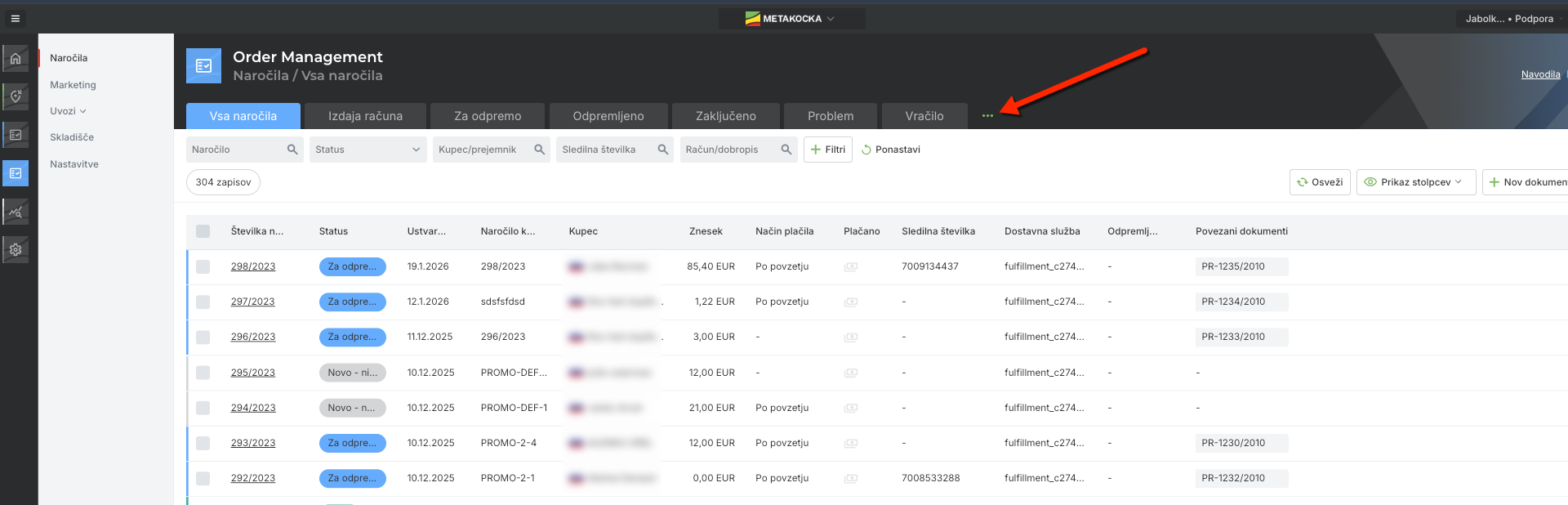
The three-dot button sits to the right of the last tab.
The window holds every tab of the list, from All orders to Returns, and each one opens on its own. Inside a tab there are three columns covering three different things: Columns, Filters and Actions. In each one you pick at the top what is shown, and below you drag the order into place and use X to remove what you do not need.
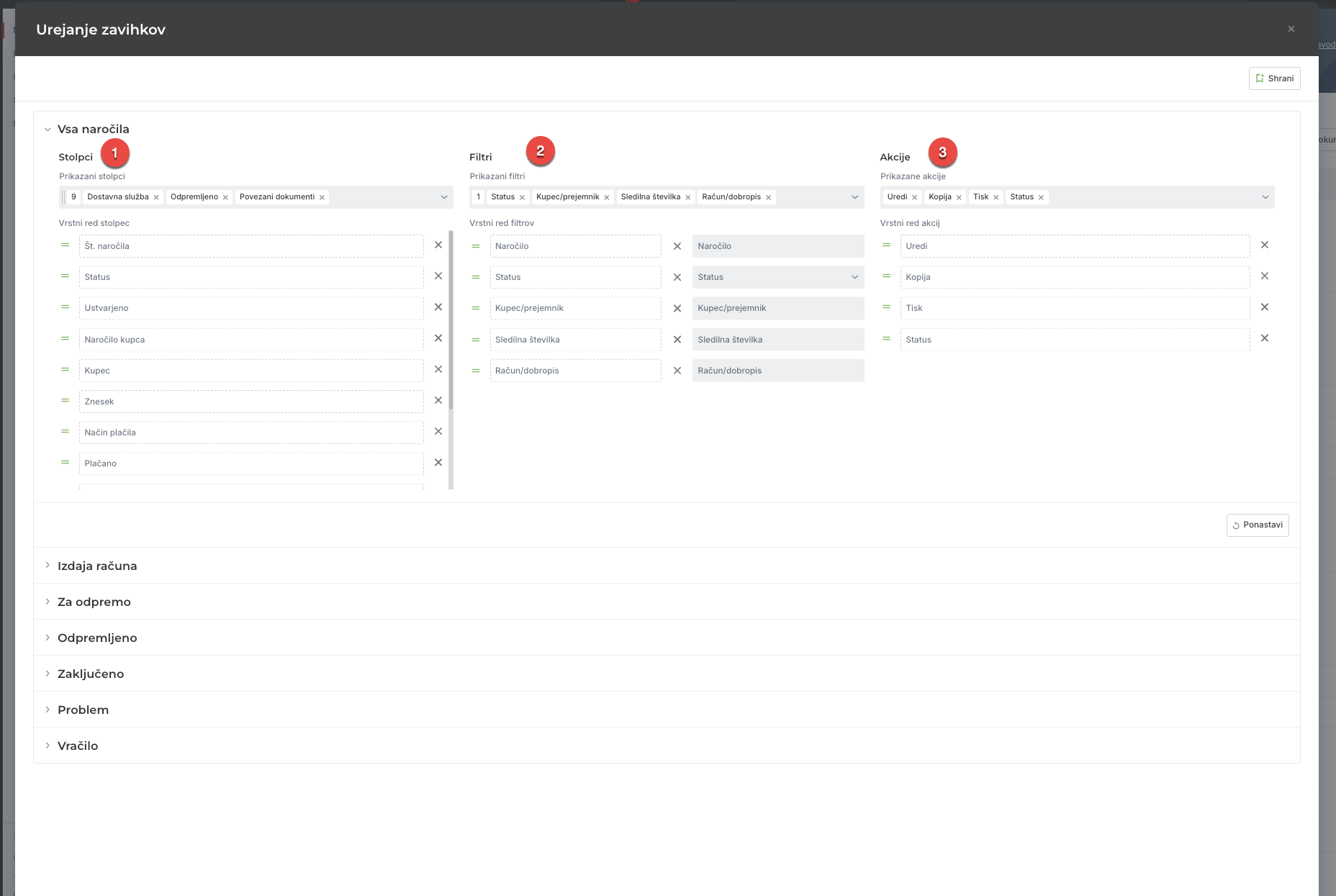
The red numbers mark the three groups of settings for one tab.
- Columns. Which data is in the table and in what order. Put the column you look at most often first and remove the rest, so there is no scrolling right.
- Filters. Which filters sit above the table, in what order and with what default value.
- Menu actions. Which actions are available and in what order, so the one you use all day is first.
A filter that is set before you even open it
Next to the filter name there is a second field where you pick a default value. If your warehouse packs for one webshop, set that shop on the Webshop filter and the list opens already narrowed down to it. The same goes for status or delivery service: what you set by hand every day, you set once.
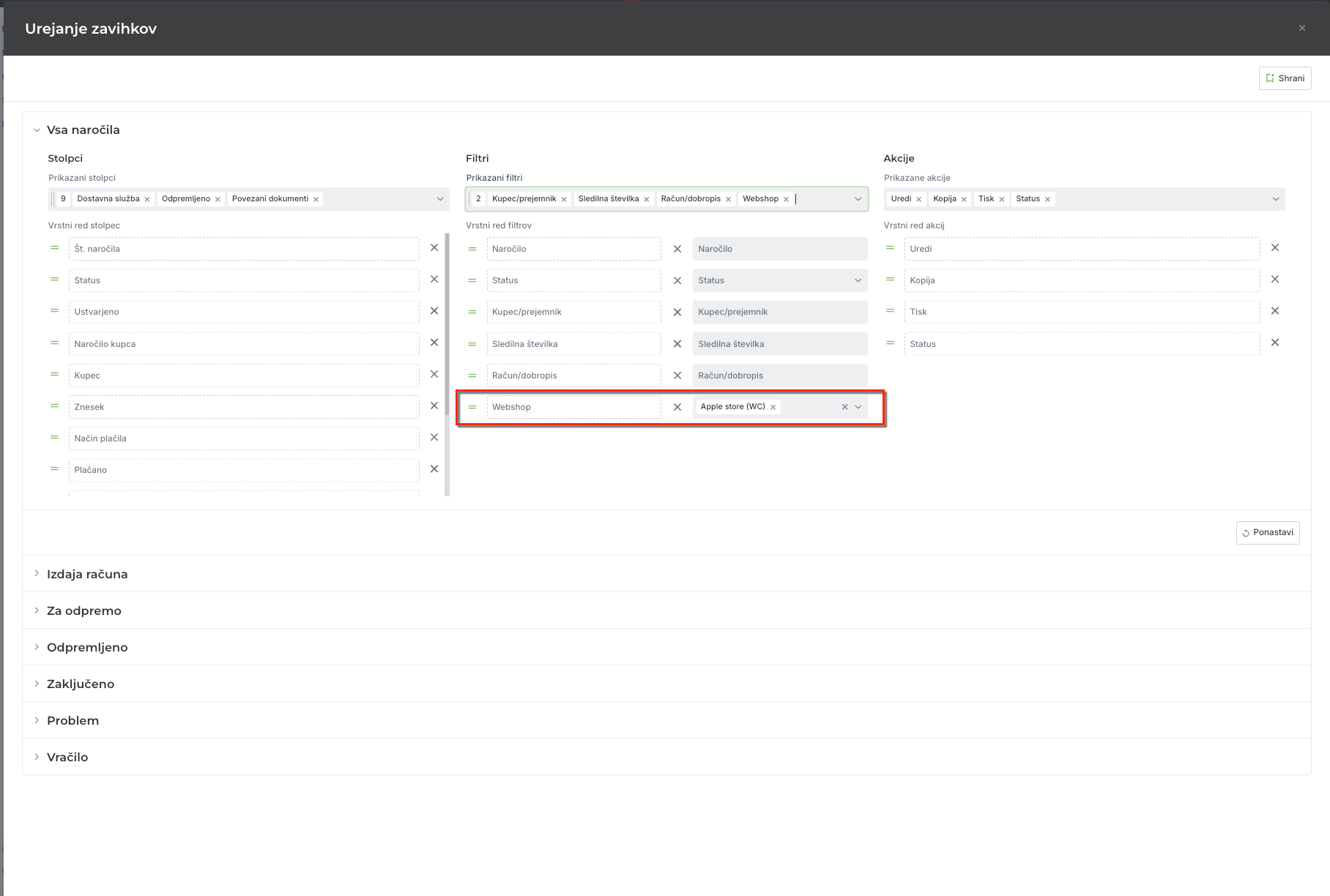
In the filter’s second field you pick the value the tab opens with.
Confirm the settings with the button Save at the top right. If you have tangled things up or want to see the starting layout, the button Reset at the bottom right brings it back.
Settings belong to the user, not to the company. On a team where everyone has their own account, each person lays out their own version of the same list without changing it for colleagues.
A few example layouts
- Dispatch. Tracking number and delivery service first, the status filter defaulted to ready for dispatch, and in the actions the actions that work on several orders at once.
- Accounting. Amount, payment method and related documents first, and the delivery columns out.
- Customer support. Customer’s order and customer first, because the search starts with whatever the customer says on the phone.
- Seasonal peaks. In November, when there are half as many orders again, a narrower list with fewer columns is quicker to go through than a complete one.
Instructions and more information:
MetaKocka support · Order Management
Are your orders still handled in a table that is not yours?
Try Order Management and keep orders, delivery and customer notifications in the same system.
| Try it out |
Wishing you business success,
MetaKocka Team
Would you like to be informed about news and optimizations?