
 New in MetaKocka
Send the template to yourself before the customer gets it
Every email template now has a test send, a preview and a settlement analysis. Test messages are not charged.
TL;DR (In short)
- Below the template editor sit Settlement analysis, Preview and Test sending.
- The preview can also show the worst-case rendering in an email client, not only how it looks in a browser.
- Send the test with the test data filled in or with the placeholders left empty, and edit the values right there in the window.
- The recipient has to be on your registered domain, and test messages are not charged.
It looks fine in the editor and falls apart in the inbox
An email template is the one thing you write once and then every customer receives it. That is exactly what makes it awkward to fix: by the time you notice something is wrong, the message has already gone out.
The catch is that HTML in email does not behave like HTML on a web page. Gmail and Outlook throw away some of the styles, they do not support flexbox and they do not load external CSS. A template that looks in the editor exactly as you intended can be a single left-aligned column in the inbox.
Where to find it
In Settings open Notifications and the email settings tab. Your templates are listed on the left, the editor is on the right, and a row of buttons sits below it.
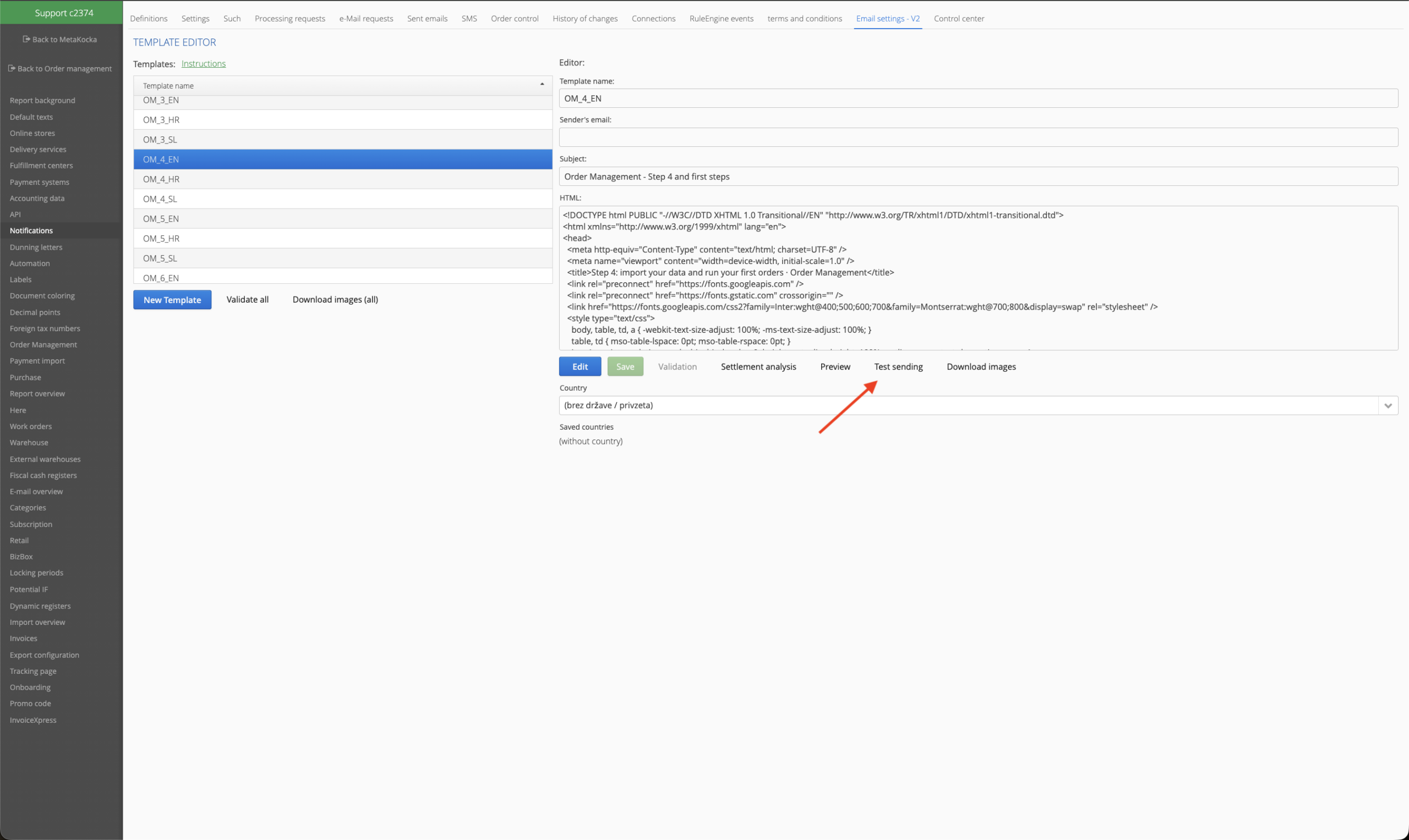
The red mark points at test sending.
Three of the buttons are new and each answers a different question:
- Settlement analysis. What in the template is written in a way that will probably break in email.
- Preview. How the template looks, without anything leaving the system.
- Test sending. How it looks in a real inbox, which is the only truly reliable answer.
The preview can also show the worst case
The preview has two options. The first shows the template the way a browser renders it, so at its best. The second is the worst-case rendering in an email client, with everything removed that clients do not support reliably. If the template is readable there too, it will hold up for your customers.
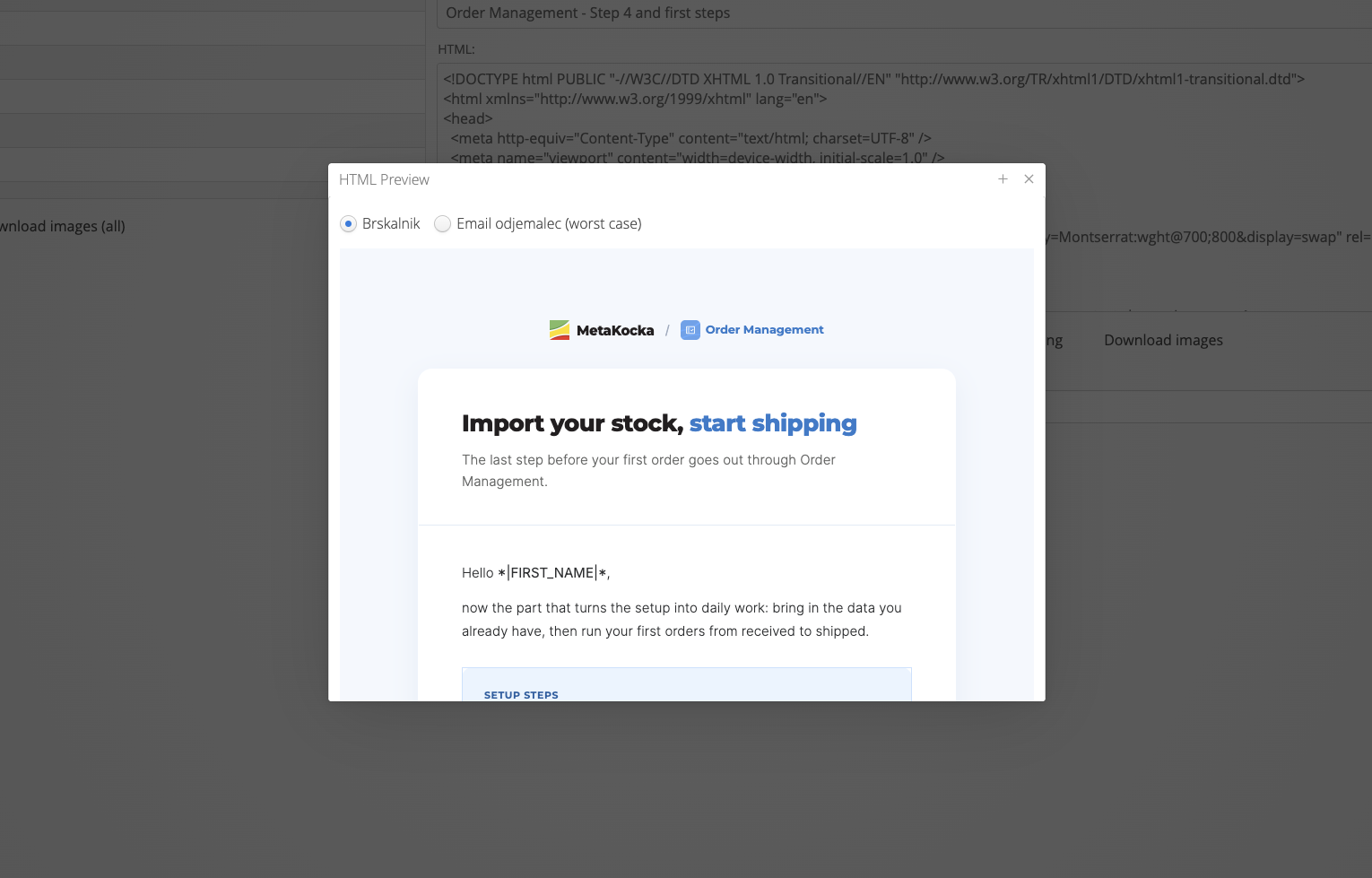
The switch between the browser and the worst case is at the top of the window.
A test send with data or without it
In the test sending window you first choose whether the message goes out with test data or as the bare template. The first option shows the message the way the customer will see it, the second leaves the placeholders untouched and is useful when you are only checking that you wrote them correctly. Below the choice are the sender and recipient fields, and below those a field for every placeholder in the template, which you fill in as you like.
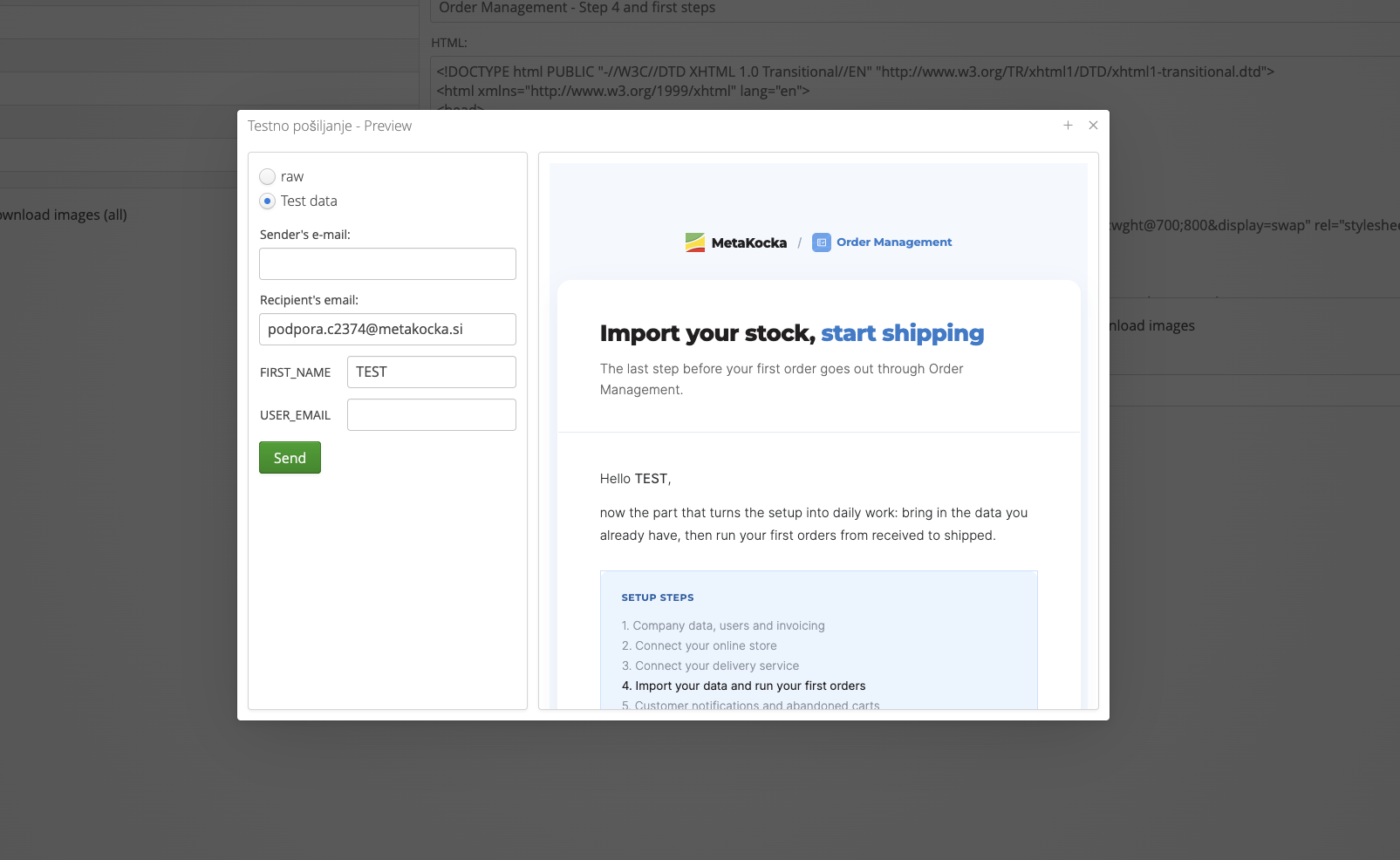
You set up the send on the left and see what will go out on the right.
You can only receive the test on your own domain
The recipient of a test message has to be on a domain you have registered and validated in MetaKocka. The user name before the @ is up to you, but the domain has to be yours. Addresses on free mailboxes, so Gmail and the like, will not go through. Which domains and addresses you have on file is shown in the Control center, where you can also check the sender and the recipient separately.
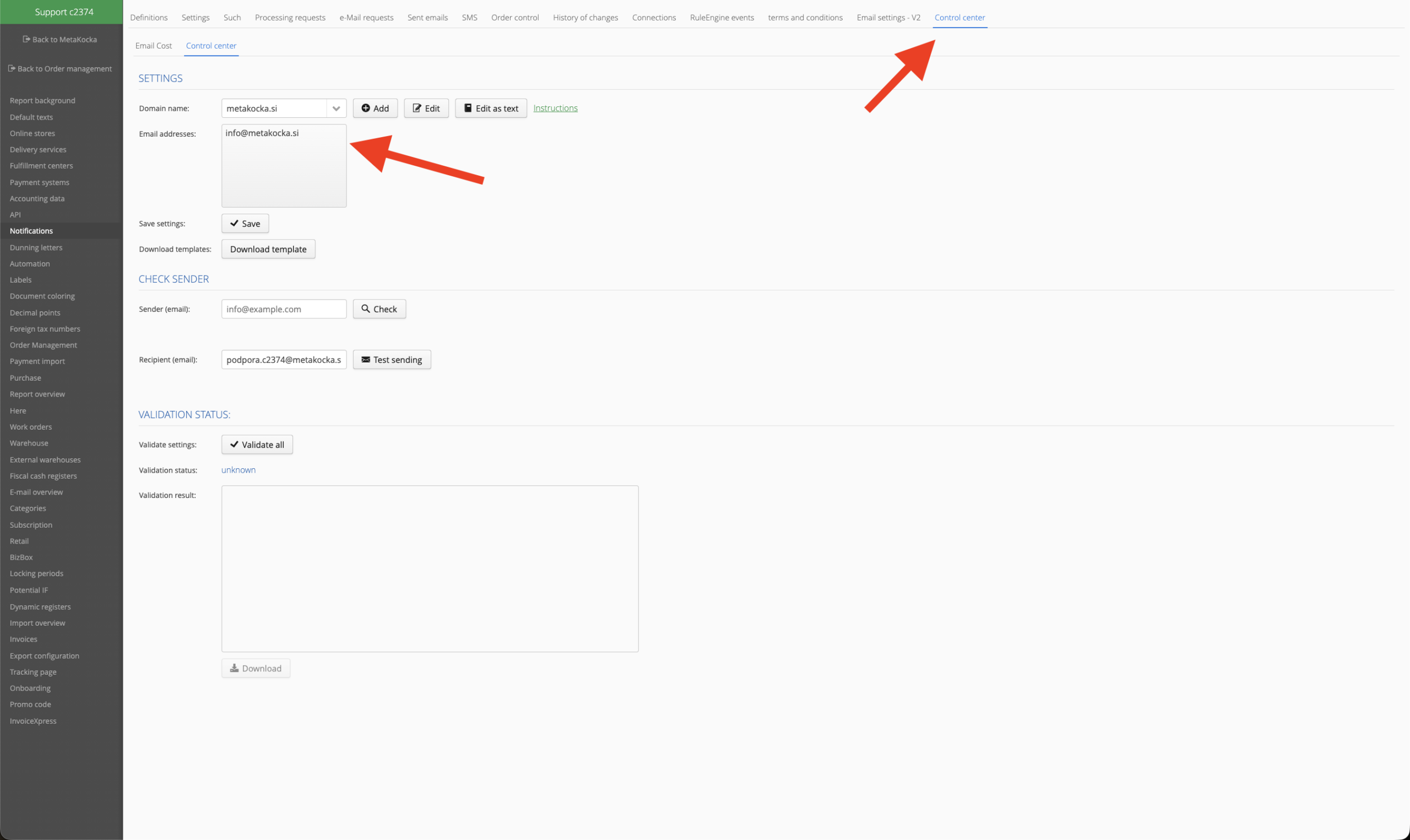
The arrows point at the Control center and at the list of registered addresses.
The limit is not a nuisance, it is a safeguard. Without it, test sending would quickly become the handiest way to send mail to any outside address, which would damage the reputation of the domains we all send from.
One send carries one message to one recipient. Test messages are not charged, so checking a template costs nothing, no matter how many times you fix it.
The settlement analysis says what will probably break
The analysis goes through the template code and lists the places that are not reliable in email. Among them:
- Flexbox. Outlook and Gmail do not support it, so the content collapses to the left.
- Absolute positioning. It does not work in email.
- External CSS. A linked style file is not loaded; the styles have to be inside the message.
- Styles only in the document head. Gmail and Outlook may strip them, and the layout and colours with them.
- A layout built on blocks instead of tables. A reliable email layout is still a table-based one.
- Rounded corners, shadows and transforms. Outlook does not render them, so the design has to hold up without them.
The analysis does not fix the template, it only shows where the trouble is most likely. For a template that was built as a web page and pasted into an email, the list is usually long, and that is useful to know before the message goes out to thousands of people.
When it shows the most
- When you set up a new template. The first message you see is yours, not the customer’s.
- After every change. Swapping a logo or a colour is a small change that can pull the whole layout apart.
- When moving to MetaKocka Mail. Once you bring the templates over from your previous provider, a test is the quickest way to see whether everything came through.
- Before the season. In November, when there are half as many orders again, more messages go through the same templates than at any other time of year.
Which messages you can send customers in the first place is covered in the article on keeping customers informed.
Instructions and more information:
MetaKocka support · Order Management
Are you still sending customer notifications from another application?
Try Order Management and keep orders, delivery and customer notifications in the same system.
| Try it out |
Wishing you business success,
MetaKocka Team
Would you like to be informed about news and optimizations?