
 Order Management
Dispatch can be recorded by the automation instead of you
The order processing rule has a new option, Mark as sent. Orders in the chosen status get a dispatch date and the status Dispatched at the set hour.
TL;DR (In short)
- The automation rule has a new field, Mark as sent.
- Orders in the chosen status get a dispatch date and the status Dispatched.
- at the set hour. Mark as sent in Order Management.
- It is meant for anyone who does not scan parcels at dispatch.
The last click of the day that nobody misses
If you scan parcels at dispatch, the dispatch is already recorded by the scan. If you do not, you have to mark the orders by hand at the end of the day: select the rows and click Mark as sent. The task is short, but it repeats every single day, which is exactly why it gets forgotten.
An order left unmarked is not only a cosmetic slip. Without a dispatch date there is no proper record of when the parcel left, and that shows up in customer questions and in every report that leans on dispatch.
What the setting does
In the order processing automation settings, open a rule or create a new one. Next to the target status there is now a field called Mark as sent. With it ticked, the orders that match the rule get a dispatch date and the status Dispatchedat the set time. The same thing the button does, only without the click.
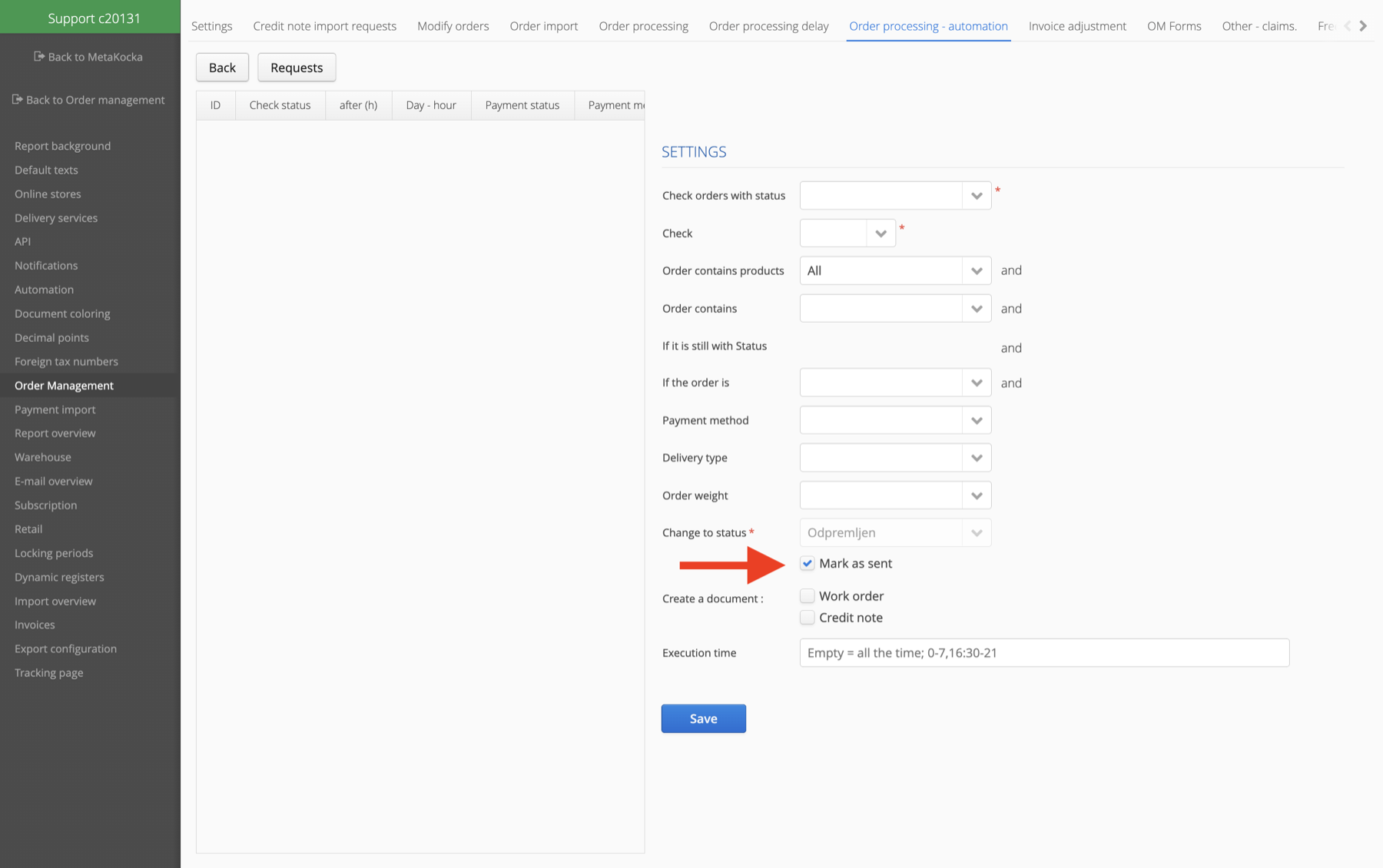
The arrow points at the new field, right under the target status. The screenshot is from the English interface.
The rest of the rule stays the same. You can still pick orders by status, by how many hours they have been in it, by payment method, by delivery type, by weight or by which products are on the order. You also set when the check runs: every few hours or on a given day and hour.
You can set up several rules and each one has its own conditions. So if part of your orders goes out in the morning and part in the afternoon, make two rules with two different hours instead of hunting for one that suits both.
Who it is for and who it is not for
The setting makes sense if both hold: you do not scan parcels at dispatch, and orders reliably reach a status that means they have gone out.
- It makes sense with a steady dispatch rhythm. If the courier comes at the same hour every day, the hour in the rule is simply that hour.
- It makes sense for small shipments. With letter post and smaller parcels scanning often does not pay off, and the dispatch still has to be recorded.
- It is not for those who scan. If you scan parcels at dispatch, the dispatch is already recorded by the scanner and the automation could mark things that are not actually in the van.
That last point is also the only real warning. The automation does not check whether the parcel really left, it trusts the status. A rule is therefore only as reliable as the status that triggers it.
How the order processing automation works as a whole is described in the guide on order processing automation. The feature is part of Order Management.
Instructions and further information:
Order processing, automation · Order Management · Delivery services
How many clicks a day do you make for nothing?
The automation in Order Management takes over the tasks that repeat the same way every day.
| Try it out |
To your success,
The MetaKocka Team
Would you like to hear about new features and improvements?