
 Order Management
A product now has pictures of its own
You upload images and other files right in the product details. There is a new section on the General tab, and a separate Attachments tab above it for longer lists.
TL;DR (In short)
- A product now has attachments: images and other files pinned straight to it.
- Upload files with the button or drag them into the field.
- Images appear as thumbnails, each with a cross to remove it.
- Above there is also an Attachments tab with the list and the file count.
The code says what the product is, the picture says which one it is
The product overview shows the code, the EAN and the name. That is enough for the system and not enough for a person. Once a merchant has three versions of the same shirt or five similar spare parts, the names are nearly identical and the difference is only visible in a picture.
Until now the pictures lived somewhere else: on a shared drive, in the web shop or in a supplier’s folder. Now they can sit on the product.
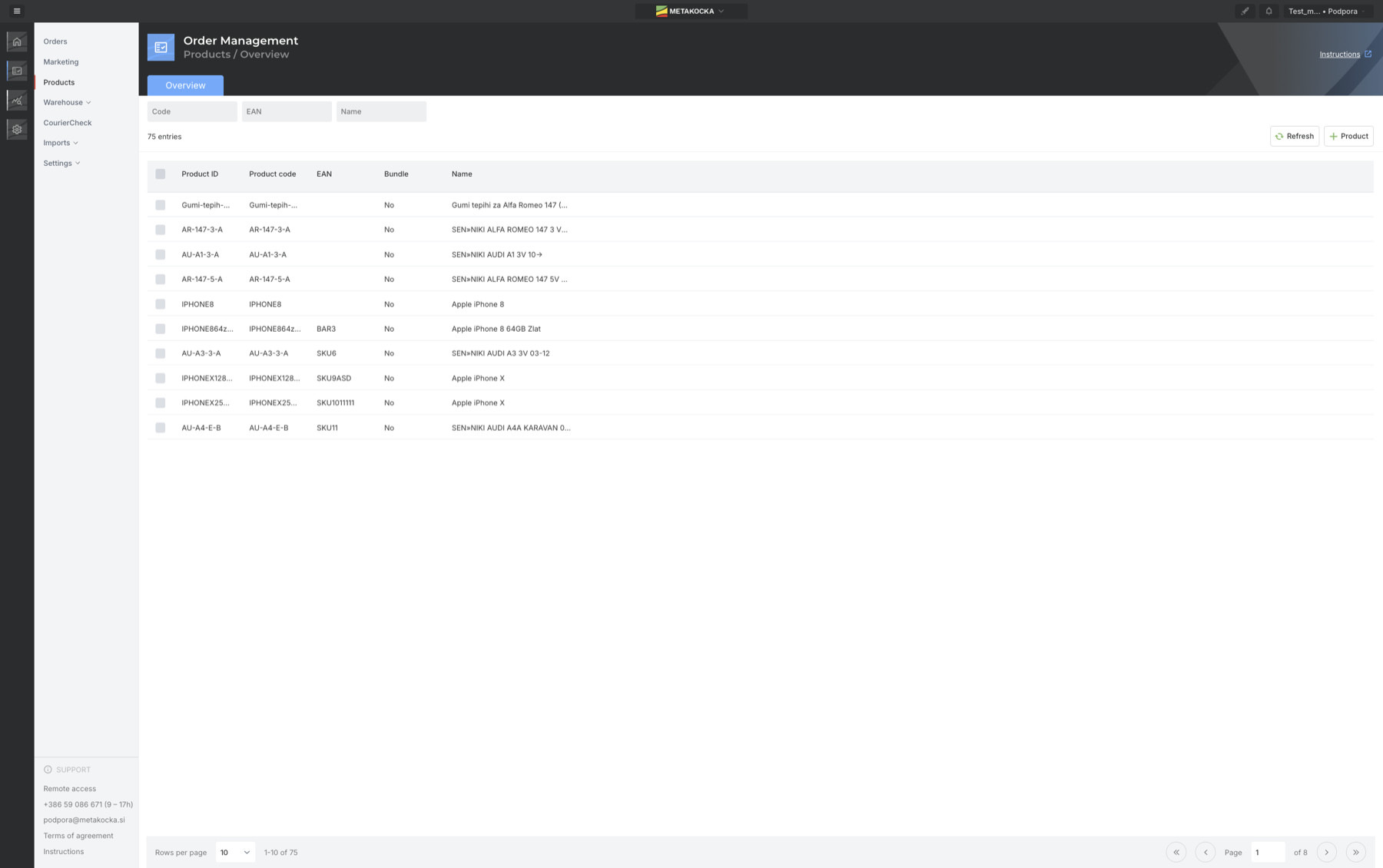
The product overview.
Where to find it
In Order Management open Products and click a product. The details window opens, and next to the General, Attributes and Bundle tabs there is now Attachments. On the General tab there is a new section too, between the product description and the dimensions.
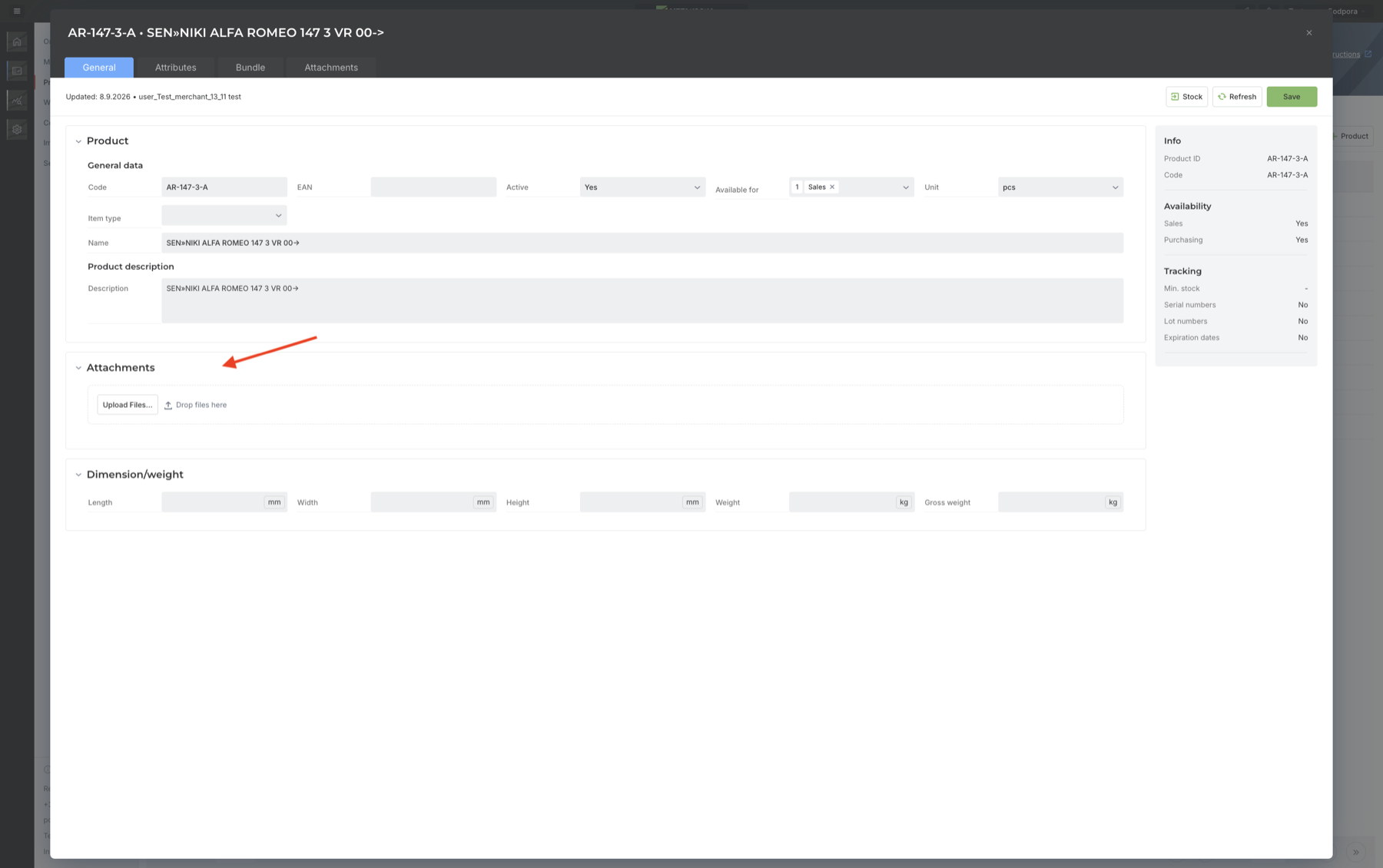
The arrow points at the new section. You can pick files or drag them into the field.
You see uploaded images straight away
Once the files are uploaded, they line up under the field. Images get a thumbnail, the file name sits below each one and next to it a cross that removes the attachment. Nothing has to be opened to look through them.
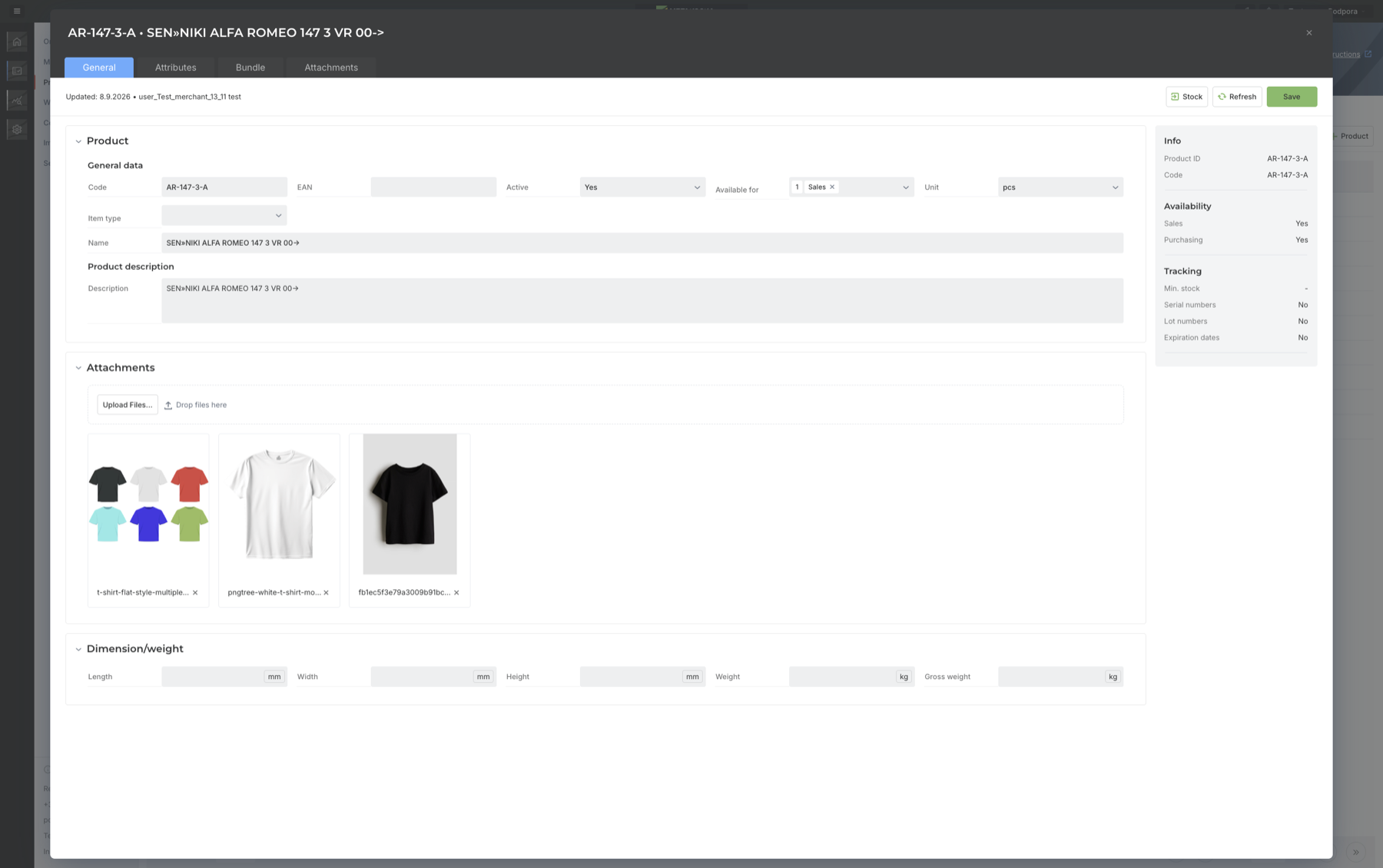
Three images of the same product, each with its own thumbnail.
The Attachments tab for longer lists
The section on the General tab is for a quick look. When there are more files, you are better off opening the Attachmentstab, where they are listed by name along with the count and a button to add more. Every row has a checkbox, so you can handle several at once.
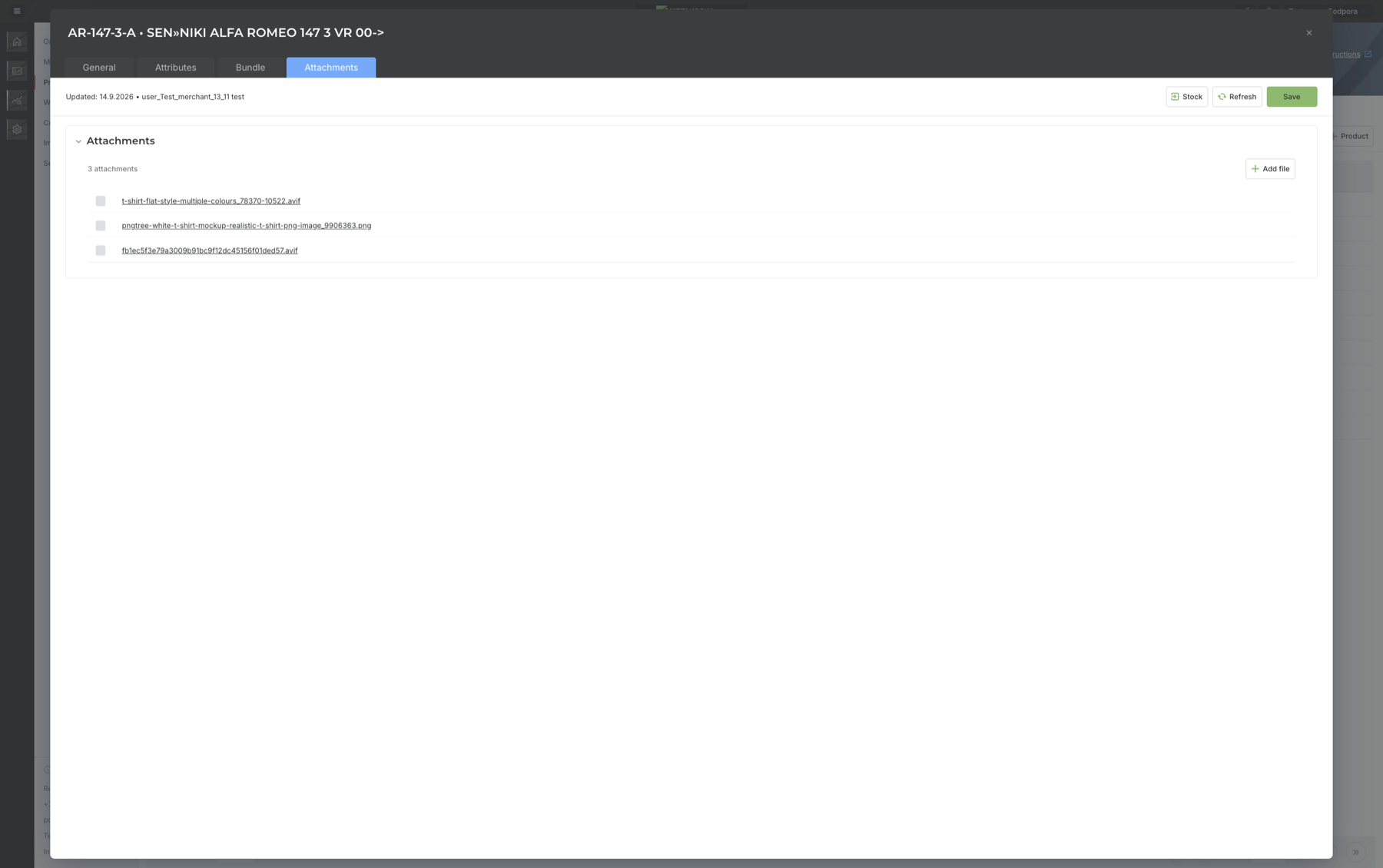
The same product, this time on the Attachments tab.
An attachment does not have to be an image. You can pin a declaration of conformity, a safety data sheet, the supplier’s instructions or a photo of a damaged piece to the product. All of it stays on the product instead of in one colleague’s inbox.
When this shows most
- With similar products. Versions that differ by colour or size are hard to tell apart by name and obvious in a picture.
- With customer questions. When somebody asks what the product looks like, the answer is in the same window as the stock and the price.
- With new colleagues. Anyone who does not know the codes by heart gets further with a picture than with a code.
- With returns. A photo of the piece that came back, pinned to the product, beats a description in an email.
The feature is part of Order Management. You can also manage products in Fulfillment App, where you run the warehouse.
Instructions and further information:
MetaKocka support · Order Management · Ecommerce integrations
Hunting for product images on a shared drive?
In Order Management they can sit on the product, next to the stock, the price and the orders.
| Try it out |
To your success,
The MetaKocka Team
Would you like to hear about new features and improvements?